Habit tracker widgets for iPhone: keep your habits in sight
The short answer: a habit you see every time you pick up your phone is a habit you remember. Habit Pups has Home Screen widgets in three sizes and a round Lock Screen widget whose ring fills as you finish the day's habits. Adding one takes under a minute.
Why widgets help habits stick
Habits run on cues. The most reliable cue is one you can't avoid, and few things are seen more often than a phone's Home Screen and Lock Screen. A widget turns your habits from something you have to remember to check into something that's simply there: a pup still waiting, or a ring that's nearly full.
The Habit Pups widgets
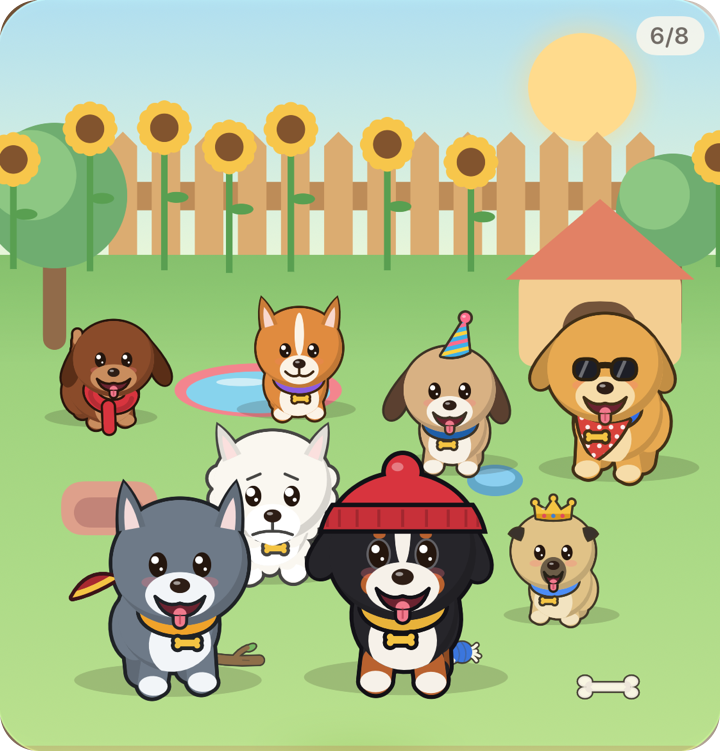
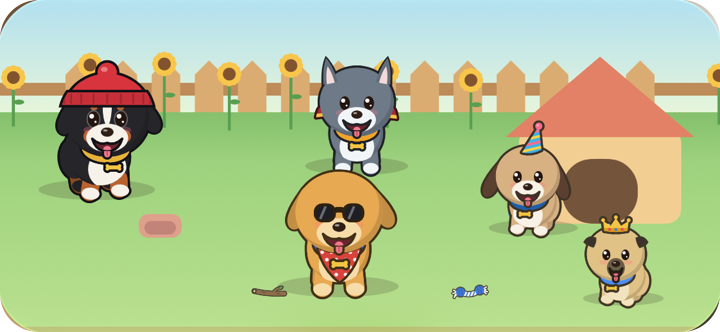
- Small: one of your dogs, a different one each time you look.
- Lock Screen: the pup of your choice in a ring with one segment per habit due today. Each habit you finish lights up a segment, and the fuller the ring, the happier the face.
The dogs in the widgets show how each habit is going: happy once it's done, waiting while it isn't, and a little sad after a missed day. The yard follows the seasons too, with sunflowers in summer and snow in winter.
How to add a Home Screen widget
- Touch and hold an empty spot on your Home Screen until the apps jiggle.
- Tap Edit, then Add Widget.
- Search for Habit Pups.
- Swipe to the size you want and tap Add Widget, then Done.
How to add the Lock Screen widget
- Touch and hold your Lock Screen, then tap Customize and choose Lock Screen.
- Tap the space under the clock.
- Pick Habit Pups, then tap the widget to choose which dog it shows.
- Tap Done.
Which one should I use?
If you have one or two habits, the Lock Screen ring is the most effective: you see it every time you check the time. With more habits, add the large widget to your first Home Screen page so the whole kennel is in view.